Service role
Pick the next attached sample and tap Issue. That starts the round — the number shows on the TV and in every taster controller.
TastyQuiz
Group roles, the phone controller, and the TV dashboard on a big screen — all in one place.
The group holds the catalog. An admin sets up the event. Tasters score. Service sets the pace.
Home for your community — sample catalog, taster list, and event history. A public group can accept join requests.
Creates and edits the group, approves members, creates events, and attaches samples and tasters. Gets controller and TV links.
An item in the group catalog (beer, wine, coffee…). At the event it is issued under a secret number — the name appears only on reveal.
A group member with a nickname. At the event they score taste, tip identity, and wait for a shared reveal. They can also be service.
Everyone tastes the same sample at the same moment.
A mobile screen for service and tasters. Open it in a new tab and keep it handy all night.
Pick the next attached sample and tap Issue. That starts the round — the number shows on the TV and in every taster controller.
Move the score, pick a tip (what it is), optionally add a comment, and submit. Then wait until other active tasters finish.
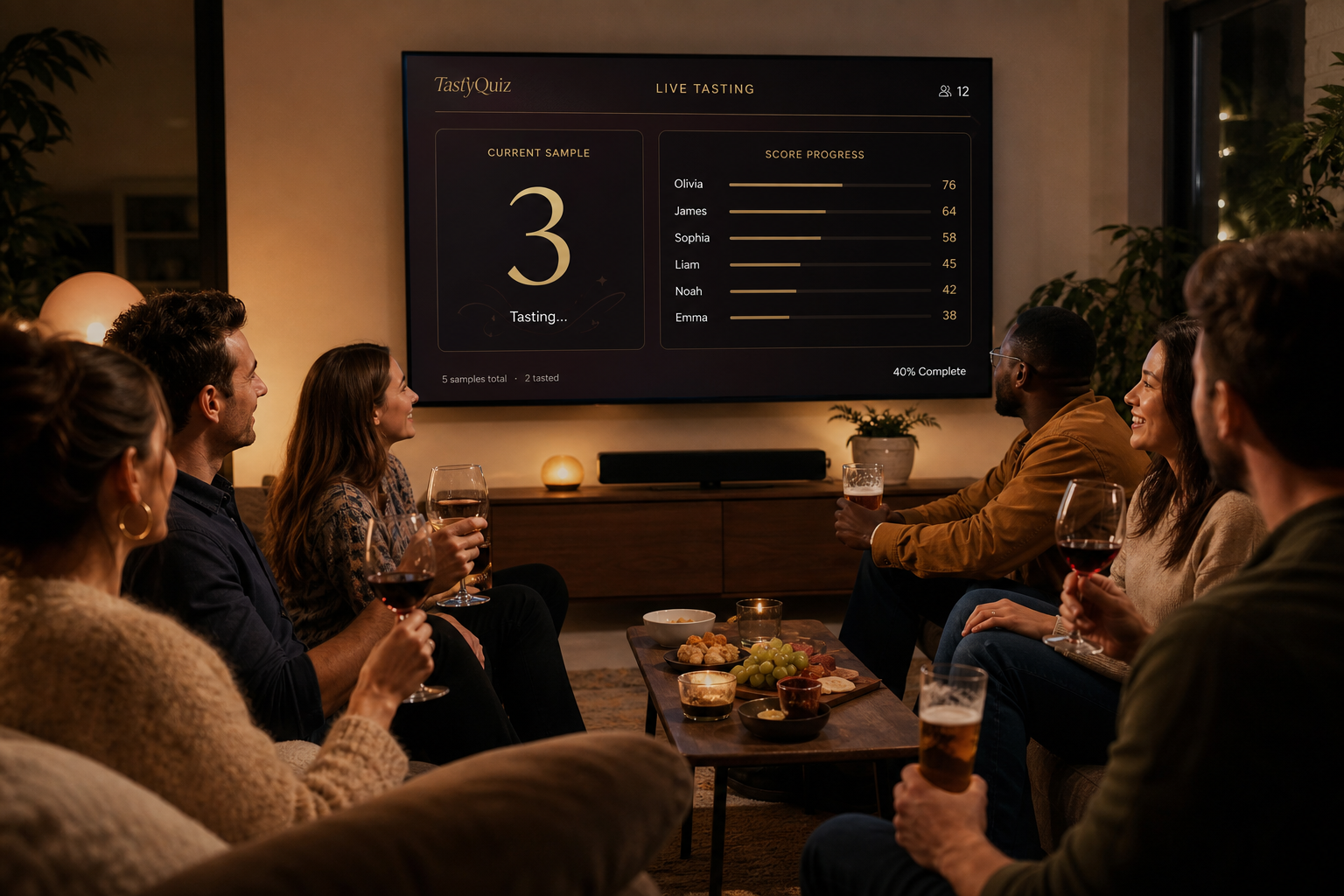
A fullscreen page for the lounge, bar, or living room — numbers, progress, and reveals for everyone at once.